Follow instructions in the screenshots below.
1. Download the Microsoft Outlook app from the Google Play Store.
2. When you open Outlook for the first time, you'll be asked to add an account and sign in.
It will prompt you for your email, here you will enter FIRST.LAST@COMPANY.COM and click "add account." It should look something like this:
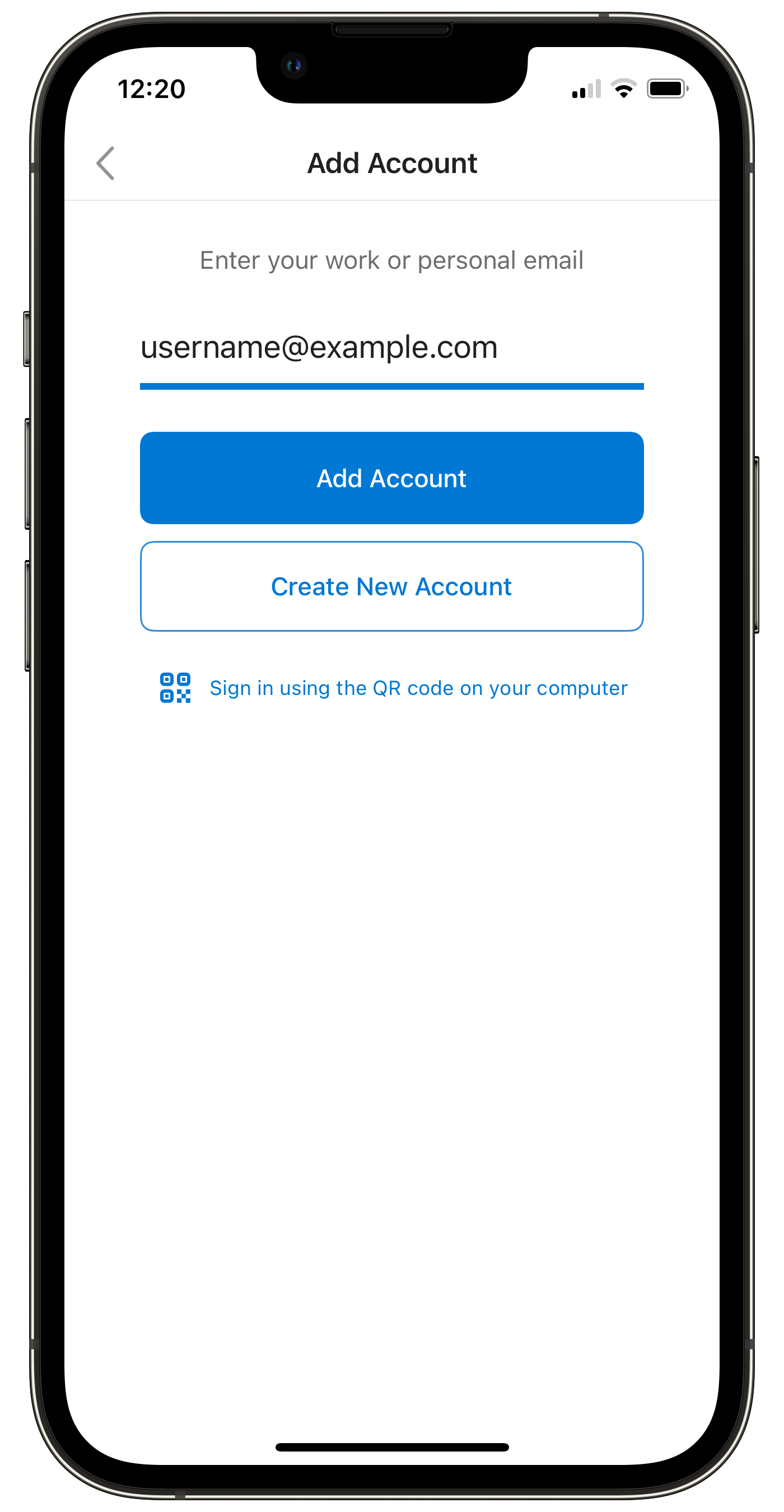
Click "Add account".
2. A screen will open that looks like this one. Select the "sign in options" button at the bottom:
Then, click on "sign in to an organization":
Type in "lyndendoor.com"
3. Then, you should be taken to our standard SSO portal, which looks like the below.
In this menu, you will enter your fLast@lyndendoor.com username (i.e. if your name is John Smith, your username is jSmith@lyndendoor.com), and your computer password. Your username will always end with @lyndendoor.com, even if you work for a different company.
The Outlook app should walk you through the rest of the way.